Printing Interview Reports
The Reports button at the top right corner of the Interviews page, on
the Record Title Details page, and on the Record Titles Search page is
used to generate and print reports. You can print reports of one or more
record titles, or of record title search results.
Reports for Versatile Corporate-Wide Access are designed in Versatile
Retention. Specific reports can be made available only on the Web, or
you can generate reports that are available in Versatile Retention as
well.
To generate an Interviews report:
1. Access Interviews and display the record
titles on which you want to report. This can be done from the main Interviews
page, on the search results page of an Interview search, or when viewing
the Record Title Details page for an individual interview.
2. Click the Reports
button  at the top
right corner of the page.
at the top
right corner of the page.
The available Interview reports are identified
in a drop-down list.
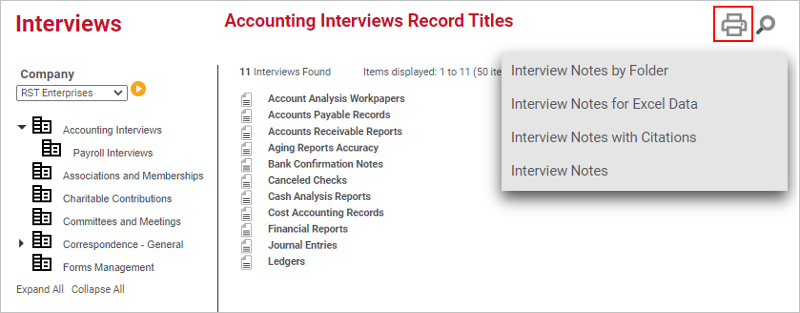
3. Select the report you want to generate.
Options may vary based on security group assignment.
4. Select the report output format, including
PDF or XLSX. This should align with the output expected for the selected
design for best results. Additional filter options may be offered depending
on the area the report is generated from.
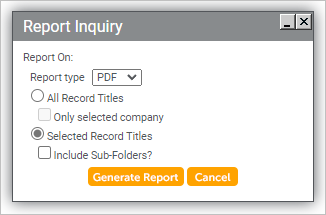
5. When generating a report from the main
Interviews page, additional options are available. Select one of the following:
· To include information
for all companies, regardless
of the record titles currently in view, click All Record
Titles.
· To include information
for the selected company only, select Only selected
company.
· To narrow down
the report to only record titles in the selected folder, click Selected
Record Titles.
· To include the
record titles for subfolders under the current folder, select Include
Sub-Folders.
6. Click Generate Report
to generate the report. The report opens in a new window. XLSX reports
will request the user to save the file to the desired location. PDF reports
typically open in the browser window.
Note: A PDF viewer is required to view the report.
7. For PDF output, use the Print
button in the toolbar to print the report. Select the printer and other
properties for your printer, and click Ok.
8. To open the report in a new window, click
Open Report (in a new window).
9. Click Done
when you have finished viewing/printing the report to return to the previous
page.
