Rejecting a Change Request
The user who created a change request may choose to reject it while
it is still in “Draft” status. However, after the request has been proposed,
it may be rejected only by System Administrators or users with appropriate
access rights .Once rejected, the request cannot be reactivated. Start
a new change request if needed.
To reject a change request:
1. From the Versatile Corporate-Wide Access
menu bar, select Change Requests.
2. You can sort and use the scroll bar to
locate the change request you want to reject. Requests in a “Draft,” “Pending,”
or “Authorized” status may be rejected.
3. Click the change request.
The Change Request Details page opens.
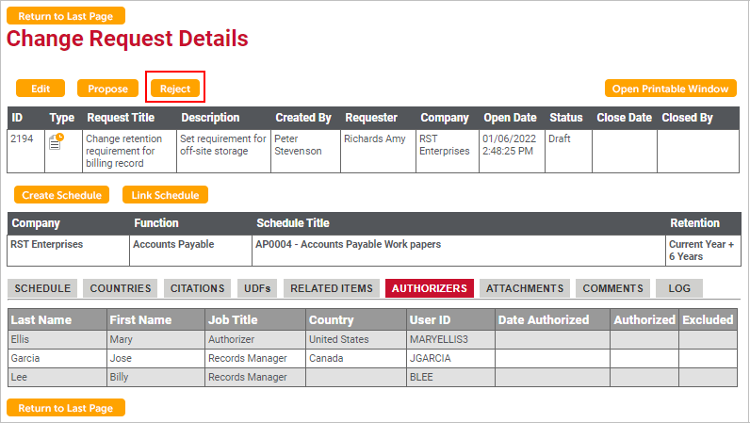
4. To reject the change request, click the
Reject button in the toolbar.
A window opens asking you to enter the reason for
rejecting the change request.
5. Type the reason you are rejecting the
request, and click Save Changes. This reason
will be recorded in the Comments tab.
The status of the request is changed to “Rejected.”
6. If you want to see the rejected change
request on the Change Requests page, you must clear the Show
Only Active Requests check box, since the request is no longer
active.
