Adding Comments to a Request
You can add a new comment to request, as explained below.
To add a comment:
1. From the Change Requests page, select
the change request you want to work with.
The Change Request Details page opens.
2. Click the Comments
tab.

3. To add a comment, click the New
Comment button.
4. The Add Comment form is displayed.
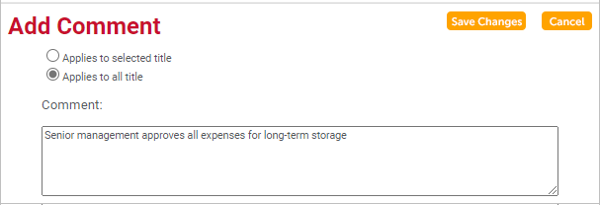
5. Enter any comment in the text field.
If desired, select the "Applies to selected title" option. Click
Save Changes to update the request.
Your comment appears in the “Reasons/Comments”
section, along with the date and time the comment was added.
Also, all authorizers for the Change Request will
receive a message with the subject "Added Comment into Change Request."
